


iScanner - PDF Scanner App
4.74.99K Reviews
App Specs
- Version
- 6.6.5
- Updated On
- License
- Free
- Downloads
- 10,000,000+
- Developer
- BP Mobile LLC
- Categories
- Productivity
- Platform
- Android, iOS
Screenshots
 Analysis by AppCompare
When I need a paper page to become usable digital text, the appeal of iScanner - PDF Scanner App is more than simply keeping a picture of it. Its OCR aims to turn a phone capture into text I can work with, which changes what scanning is useful for: instead of filing every page and searching it by eye later, I can use the content as a starting point for notes, records, or follow-up tasks. That is the capability I would focus on if I were deciding whether this productivity app belongs on my phone.
Why text recognition changes the job
A basic camera photo preserves the appearance of a document, but it leaves me to retype anything I want to quote, search, or reuse. OCR can reduce that busywork. I would use it for a printed handout I want to turn into study notes, a receipt whose details I need to record, or a form where I need to carry a few lines into another document. It is most useful when the page is readable and the goal is to reuse its wording, not just keep a visual copy.
That distinction also sets a sensible expectation. OCR is a convenience, not a reason to discard the original or assume every captured character is correct. I would check names, dates, totals, and any wording that affects a decision before relying on extracted text. A quick review is especially worthwhile when the page is faint, crowded, or printed in an unfamiliar layout. The time saved comes from avoiding a full manual transcription, not from eliminating proofreading.
The Magic of Mobile Scanning
First off, let’s talk about how easy it is to start using iScanner. Downloading the app is a breeze, and setting it up is even faster. The app greets you with a user-friendly interface that doesn’t require a tech degree to navigate. With just a few taps, you can transform your smartphone into a high-quality scanner.
Features That Stand Out
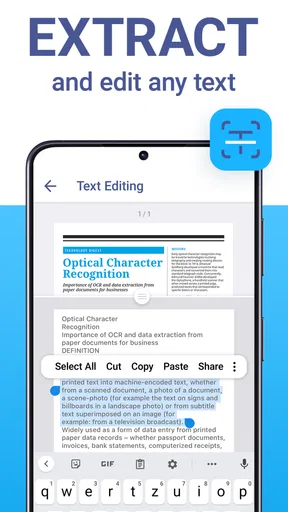
One of the standout features of iScanner is its ability to recognize text through OCR (Optical Character Recognition). This means you can scan a document and extract text from it, which is perfect for those who need to digitize notes or receipts. Whether you’re a student or a professional, this feature is a game-changer.
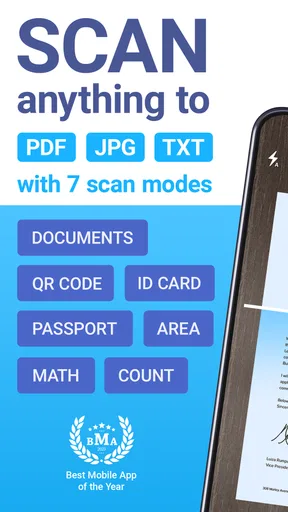
Another nifty feature is the multiple scanning modes. The app provides options for color, grayscale, or black & white scans, allowing you to choose based on your needs. Plus, you can adjust the brightness and contrast to ensure that every detail is captured with precision.
Getting a cleaner capture in everyday conditions
In practice, I would treat the camera capture as the first step and the saved file as the finished result. I place the page on a plain, contrasting surface, keep the phone parallel to it, and make sure the text is evenly lit before taking the scan. Those small habits give edge detection a clearer outline to work with and make OCR more likely to have legible characters. If a page has a dark background or colored markings, I would try the mode that preserves the information I need rather than automatically choosing black and white.
Worth Reading Before You Choose

Flipboard Shows What News Apps Must Do Beyond the Feed

Switching to Android Auto Means Rethinking Your Driving Routine

Google Calendar Makes a Crowded Week Easier to Manage

Ludo King Makes the Most of the Minutes Between Plans

Baby Panda World Brings Quick Play to Modern Phones, but Its Game Library Feels Busy

ESPN’s Live Game View Makes Following Close Games Easier
A useful workflow for a multi-page handout is to scan the pages in order, inspect the previews, and correct any crop that cuts off a margin before treating the document as complete. I would also name the file for the task or subject while I still remember why I scanned it. That matters more than it sounds: a folder full of files called “scan” is technically digital storage, but it does not make the page easier to find. For OCR, I would compare a few extracted lines against the original before copying important text elsewhere.
User Experience: Smooth and Intuitive
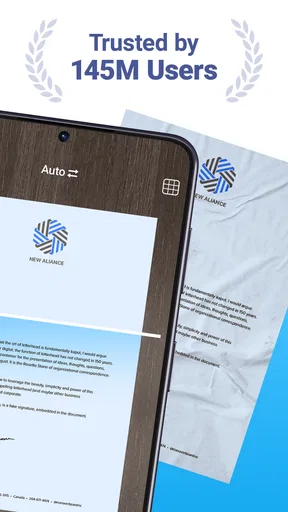
Using iScanner feels like second nature. The app guides you through the scanning process seamlessly. Simply point your camera at the document, and the app automatically detects the edges, cropping the image to perfection. This ensures your scans are clean and professional-looking, without any awkward angles or shadows.
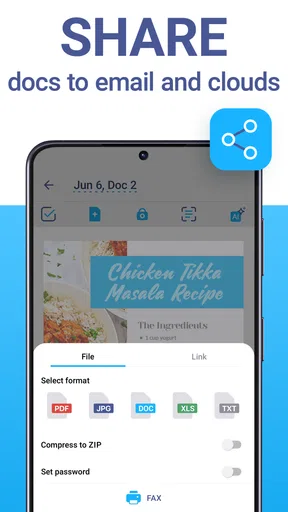
Sharing scanned documents is also super straightforward. With options to save in PDF or JPEG format, you can easily email your scans or upload them to cloud services like Google Drive or Dropbox. The integration with these platforms is smooth, making document management a breeze.
A realistic handoff from paper to a task
Picture a student leaving a library with a printed reading sheet and a few handwritten notes. A phone scan can preserve the page for later, while OCR may make selected printed passages easier to reuse in a study outline. I would keep the image or document as the reference, then check the extracted wording as I build the notes. That is a more dependable routine than assuming recognition is flawless, and it avoids the awkward choice between carrying the paper everywhere and typing the whole page from scratch.
The same approach works for a small-business owner collecting paper receipts after errands: capture each one while it is in hand, use a meaningful name, and keep the resulting files grouped with the records they support. For a single receipt, a camera photo may be enough. The scanner earns its place when clean page framing, a consistent document format, or text recognition will make the next step easier.
Choosing it over a camera or a desktop scanner
The ordinary camera app is the obvious alternative, and it can be the better choice when I only need a quick visual reminder. It is already familiar and does not require a separate scanning workflow. A dedicated document scanner is more compelling for regular batches, large stacks, or office routines where a physical feeder and a fixed workstation matter. iScanner sits between those options: it is convenient for occasional paperwork away from a desk, with OCR and document-oriented capture that a plain snapshot does not center.
That middle ground is also its trade-off. A phone camera depends on lighting, focus, and how steadily I hold the device, while a scanner on a desk can offer a more controlled process. If I handle many pages every day or need a highly repeatable office setup, I would compare dedicated hardware before making a phone app the whole workflow. If I mainly need to capture a few pages wherever I happen to be, carrying the scanner in my pocket is the stronger advantage.
Security and Privacy
In a world where data privacy is a major concern, iScanner takes your security seriously. All your documents are stored locally, and the app doesn’t upload anything to their servers without your permission. This means you can rest easy knowing your sensitive information remains private.
For my part, I would still be deliberate about where I send a scan after creating it. A document can move from a phone to an email account or cloud service once I share it, so the destination matters as much as the capture step. Before sending paperwork with personal details, I would check the recipient and the chosen storage location. The practical value of scanning is speed, but a quick pause before sharing is worthwhile when a page contains information I would not casually distribute.
What to expect from the free app
iScanner is free to download, while in-app purchases range from $0.99 to $39.99 per item. I would start with the free experience and see whether the scanning and OCR workflow covers my actual routine before paying for anything. The app is made by BP Mobile LLC, has a 4.7 average from around 537,000 ratings, and has been installed over 10 million times. Those figures suggest a widely used tool, but they do not tell me whether a particular paid option is worthwhile for my own needs.
The age rating is Everyone, and the current version is 5.88.5, with Android support beginning at OS 10. If you are choosing it for an older phone, that minimum system requirement is worth checking before you plan a document workflow around it. For a simple test, I would scan a page I already understand, inspect the crop, try the text recognition, and export the result in the format I expect to use. That quick trial answers more than a feature list: it shows whether the capture quality and handoff fit the way I work.
Who benefits most—and who can skip it
I see the clearest fit for students, freelancers, people handling occasional forms, and anyone who needs to turn paper into a shareable file while away from a computer. OCR is especially handy when the scan is not merely an archive but a source for another task. Someone who only wants to photograph a page now and then may be perfectly happy with the camera app. Someone processing thick stacks or requiring a formal, high-volume office process may be better served by dedicated scanning equipment.
My practical recommendation is to decide based on what happens after the page is captured. If I need a clean document, want to keep several pages together, or expect to reuse printed text, iScanner offers a useful phone-based route. If I only need a snapshot, its extra steps may not add much. The best results come from a readable original, careful framing, and a quick check of the output; those habits matter more than treating any scanner app as a substitute for judgment.
Enhancing Productivity
If you’re someone who’s constantly on the go, iScanner is perfect for boosting productivity. Imagine being able to scan contracts or receipts on your phone and send them off immediately. No more waiting until you’re back in the office or home. This app empowers you to handle tasks efficiently from anywhere.
For those juggling multiple documents, the app’s file management system is a lifesaver. You can organize your scans into folders, rename them for easy access, and even merge multiple pages into a single document. It’s like having a mini filing cabinet right on your phone.
Final Thoughts: Is iScanner Worth It?
After spending some quality time with iScanner - PDF Scanner App, I can confidently say that it’s a solid tool for anyone who needs a reliable scanning solution on their phone. It combines ease of use with powerful features, making it a top choice for both personal and professional use.
Whether you need to scan a single page or an entire book, iScanner handles the job effortlessly. It’s a small investment that pays off in convenience and efficiency. So, if you haven’t already, give it a try and see how it can make your digital life a little bit easier.
Pros
- Easy-to-use interface for quick scanning.
- High-quality scans with adjustable resolution.
- Supports various file formats for saving.
- Batch scanning for multiple documents at once.
- Integrated OCR for text extraction.
Cons
- Free version has limited features.
- Occasional ads in the free version.
- Requires permission to access camera.
- Some features need a premium upgrade.
- Limited cloud integration options.
FAQs for iScanner - PDF Scanner App
How does iScanner ensure the quality of scanned documents?
iScanner uses advanced image processing technologies to enhance the quality of scanned documents. The app automatically adjusts brightness, sharpness, and resolution to produce clear and professional-looking PDFs. Users can also manually tweak settings for optimal results, ensuring that scanned documents meet personal or business standards.
Is iScanner available for both Android and iOS devices?
Yes, iScanner is available for download on both Android and iOS platforms. This ensures that users with different devices can access the app's features, making it a versatile tool for scanning documents directly from their smartphones or tablets, regardless of the operating system.
Does iScanner offer any security features for scanned documents?
iScanner provides several security features to protect scanned documents. Users can lock PDFs with a password, ensuring that sensitive information remains confidential. Additionally, the app does not store scanned files on external servers, offering peace of mind that personal data is kept private and secure.
Can iScanner convert scanned documents to editable text?
Yes, iScanner includes OCR (Optical Character Recognition) functionality. This feature allows users to convert scanned documents into editable text, making it easy to edit, copy, or share text from images. This can be particularly useful for digitizing printed documents and extracting text data efficiently.
What are the in-app purchase options available in iScanner?
While iScanner offers a free version with basic scanning capabilities, there are premium options available through in-app purchases. The premium version includes features such as unlimited scans, advanced editing tools, and ad-free usage. These options cater to users who require more robust functionality for regular or professional use.


